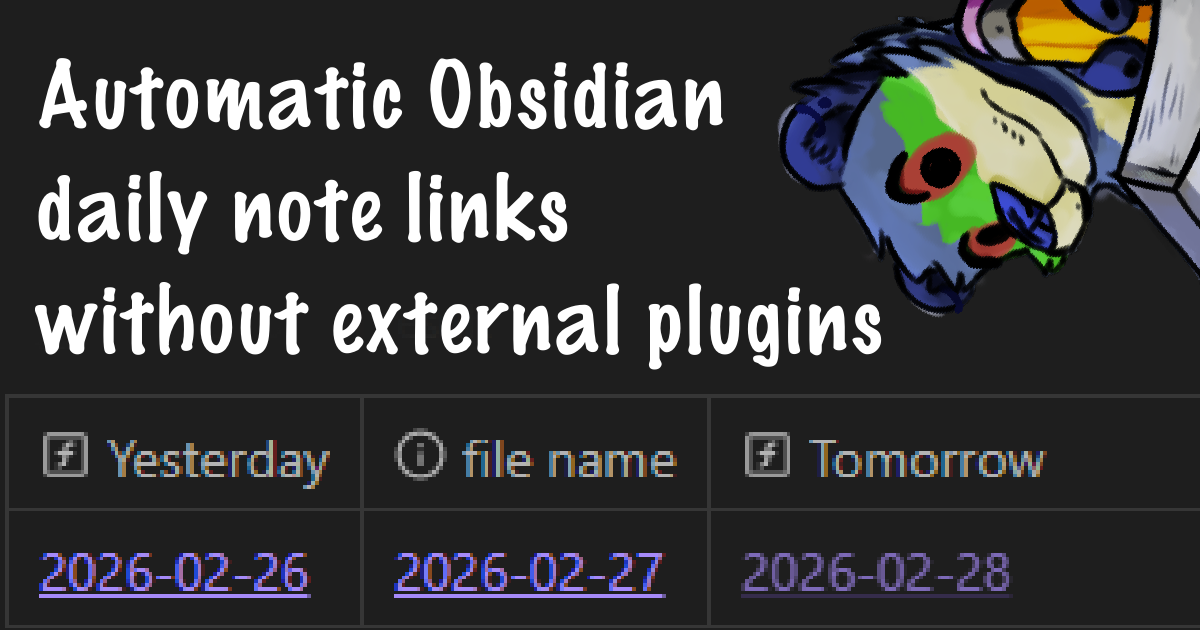
Obsidian lets you make daily notes pretty easily. One feature I was looking for was having each daily note automatically generate links to the notes for the day before and after a given daily note. These would essentially act as buttons for me to quickly jump back and forth through a timeline, or let me easily make notes for a day that isn’t today (like if I committed to something tomorrow. I’d rather note that down on tomorrow’s note, not today’s).
When trying to find out how to do this, a lot of solutions focused on using the Templater plugin. Now, no shade to anyone that uses or makes Templater, I’m sure it’s great. But I want to use the minimum number of plugins that I can. I already use Emacs, so I don’t need Obsidian to turn into Emacs for me.
I found that the Bases core plugin can actually do that! I haven’t found a guide on what I did posted up yet, so I figured I’d share what I did in case others are looking to solve the same problem. I didn’t realize this would turn into a thing with a 12 minute estimated reading time, so uhhh, hope you’re enjoying your coffee break!
Also this isn’t written with AI, I’m just neurodivergent lmao (I’m writing a tutorial for a notes app, that goes without saying). If you want to see how neurodivergent, read about my work in OSM as an example
TLDR
I go more indepth into what I did below. You’re going to need to read that if you want to customize this set-up or hack it apart to do fun stuff, probably. Or don’t, I’m not the notes app police.
If I’m losing your attention, then here’s the short version:
Make a daily template. Configure your daily notes plugin to use that template. (If a clean graph view is important to you, use a code block embed of the base, rather than an embedded file.)
In that daily template, run a command to
Bases: Insert New Base.Rename and move around the newly createdUntitled.basefile wherever you want.Apply a filter to the In-line base. Make it filter for:
file.name == this.file.name AND file IN FOLDER dailiesReplace
dailieswith where you put daily notes. Replace the whole filter if you use a different daily note classifying system, like tags or properties. Since I can’t read your mind, I’ll leave this part up to you.
Add a formula field to the view. Call it
Yesterday.Give
Yesterdaya formula like this:link("dailies/" + (date(file.name) - "1d").toString(),(date(file.name) - "1d").toString())Replace
dailies/with where you put your daily notes. Ignore that bit if your daily notes go Wherever™️ and you use a different system to determine daily notes.
- Another formula field called
Tomorrow. This time, we add a day, not subtract. So you should have:link("dailies/"+(date(file.name) + "1d").toString(), (date(file.name) + "1d").toString())Again,
dailies/goes away if you don’t use that.
Rearrange the columns so that it goes in order of Yesterday, Today, Tomorrow. (Alternatively, don’t do that. You’ll unlock 💥Daily Challenge Mode💥)
You’re done. Go put out your trash for me 🦝
Make a Template
If you somehow don’t have a template file for your daily notes, catch up to the Flintstones age by making one. It can be blank for now, but after that:
- go into
Settings > Daily Notes *under core plugins category* > Template File Location - Type in where you put it. Please tell me you put that in a folder called
templatesor something, I beg of you.
While you’re here, check that you have a folder for your daily notes so you can match my Perfect and Good Workflow. If you don’t use folders and want to use your own Imperfect and Bad Workflow, that’s fine (but keep it indoors and out of public view and don’t shove it down everyone’s throat. What am I supposed to tell my child if they see it?) You’ll just have to figure out how to do some filtering on your own to make it work.
Also while you’re in settings, click Core Plugins (the button, not the category) and confirm you actually have Bases enabled. That’s going to be key to a solution that… you know… depends on Bases.
Create a Base In-line of the Template
Open up the template file you made in the last heading or that you’ve had for years like an elastic band around a dish soap container. I’m going to call this file daily_template. You can assume mine is in a folder called templates. You can also assume my daily notes are in a folder called dailies. You can assume a lot of things about me.
Inside daily_template, run the command Bases: Insert New Base. Or do it through the context menu, that UI designer worked hard to give you that button. Just try to make sure you do insert and not create so that the base actually gets embedded in your template. You’ll have to figure out how to embed your base in your note if you do the other one. (I’m not saying it’s hard, you’ll just have to figure it out is all. As punishment for not following my instructions, I’m taking yet another spoon of yours for the day.)
Once that’s done, you’ll probably want to change the name of the base to something useful and move it out of the way (since an In-line base actually creates a .base file in your vault). This isn’t actually important to do, it just makes things cleaner. Which therefore makes it vitally important to do immediately so you don’t forget. I renamed mine to dailyTemplateLinks.base and moved it into templates.
Now, you might be wondering why I mix camelCase and snake_case in the same folder.
There's actually a good reason for that.
I didn’t realize I did that until I wrote this.
Anyway, you should put this in-line base under a header and then put another header underneath it. That way the template makes your links in its own section and lets you go straight to a note-taking section. Once your template is here, you’ll adjust your base view.
Filter to Just the Current Note
On the In-line base, you want to apply a filter. (Well I mean I don’t know if that’s what you want, but you’re gonna have to do it to follow along with this tutorial.)
You want that, wait sorry will need that filter to do two things.
- Filter for notes solely in your daily notes folder (so you don’t get dated notes from other folders in your view.)
- Select for the note that’s named the same as the note the base is currently embedded in.
1 is easy enough to do by just selecting “All of the following is true”, then next to where, you select FILE, in folder, dailies. It’s a simple query. If you don’t use a folder to keep all your daily notes, replace this with whatever will work for your method. If you have 0 chance of having dated notes somewhere outside your dailies folder, you don’t even need to think about 1. But if you think this way, consider that Mercury may go into retrograde. Are you prepared for that possibility and its implications on you?
2 is actually easy to solve because Obsidian includes the this keyword, which is context sensitive. When you use this with an In-line base, then this means the note that base (th)is embedded in. If you were looking at the base thisself, then this would mean the base file. When this is in a sidebar, then this looks at what'(hi)s in focus and treats that as this. Thisn’t this neat?
If this confuses you, look at this.
If this confuses you, that’s understandable.
Anyway for our purposes, this that feature is useful because we can have the view return just one file in the query: the same file that the view is embedded in. Why is that important? Well it isn’t, trans rights are important. But it is useful because we’re going to have two fields paired with this one result. It wouldn’t be useful to return more results than just the one since it wouldn’t be clear which button you need to click to get to the next/previous day.
Sidenote about implementations i've tried, if you care
My original implementation of this solution had yesterday and tomorrow as separate rows instead of columns. But I changed direction on that for a few reasons:
- I believe
Basesonly query files that actually exist. So you can’t have a row for a “tomorrow file” unless you actually go and make it. I think it’s more convenient to have the solution actually make such a file if you don’t have it already.- To get a consistent ordering of rows, you have to figure out sorting. That’s usually not a problem because going Z to A will put tomorrow at the top and yesterday at the bottom. But that makes it really sensitive to
YYYY-MM-DDformatting. Allah help you if you put the month first.- It looked really bulky. And I only like it when men are bulky, not database views.
If you did it right, it should look like it’s doing nothing. That’s because you’re working from a template file. It shouldn’t do anything until you put it on a daily note, since that actually matches the filter we just put on. But if it is doing something for you right now, @ me on mastodon with a screenshot cuz that sounds hilarious.
Create Two Formula Fields in that Base
Assuming you’re not funny, you can move on to this step. Add a new formula field (that’s under Properties) for the In-line base. You can call this Tomorrow if you want. You can call me a good boy if you want too!
It’s actually kinda cool how easy date math is in Obsidian. Normally having a job that involves coding and date arithmetic instantly increases your health insurance premiums due to mental health concerns. But with Obsidian, you can literally just say “add one day” and it’s fine! (Your premiums will still go up because insurance is a racket, but you can’t blame Obsidian for that… I swear to god if that statement ages like milk somehow, I will make Obsidian a fursona and use it to ruin Obsidian’s SEO by having it appear on its image search results.)
The formula you’re going to use will look like this. Hold my paw, we’ll take it a step at a time. Don’t be scared <3
link("dailies/"+(date(file.name) + "1d").toString(), (date(file.name) + "1d").toString())
Going in good ol’ eval/apply order a la the Wizard Book:
link([STR, STR])makes a link out of a string that is given in the first parameter, and also lets us make that link look like the string given in the second parameter. Evaluating that first parameter:"dailies/" +means that this specific raw string needs to be concatenated to whatever is up next after the plus. Concatenated just means putting two words together. Imagine a cat named Nate pushing a vase labelled Con off a table. Imagine that happening and you said “that vase just got Concatenated!!” You have a very active imagination, you know?(...)is an order of operations thing. We’re trying to say “hey, evaluate everything in here before moving on. I’ll give you a Scooby snack if you do that.”- date(…) turns whatever is in it and treats it like a date. Since this isn’t a string, this needs to get solved so that it can, to borrow a phrase from your imagination, “get Concatenated!!”
file.nameis a property. This gets evaluated to the (you guessed it) name of the file. In the context ofBases, it’s the file represented by the row. Since we already filtered for rows that matchthis.file.name, we don’t need anotherthisto make sure we’re only looking at the file we’re looking at. (No I promise I won’t do thethisjoke again, that was so last heading)dateis applied, and sincefile.namewas a daily note, it is ideally inYYYY-MM-DDformat. You’ll recognize this as what some scientists call a “date”. That means it should be easy to convert from string to date.+ "1d"is a magic phrase that Obsidian allows us to do. Since the thing before the plus was a date, we literally are saying “add a day.”- We hit the
)that ends the group. You owe Obsidian a Scooby snack. You don’t have a Scooby snack, so you should expect a Scooby smack at some point in the indeterminate future.
.toString()turns the date we made (which, reminder: that’s the date represented by the title of the note, plus one, AKA the day after.) into a string. We needed a string to have a second parameter that, once again quoting you and your active imagination, “gets Concatenated!!”- The reason we wanted this to happen was to make sure any notes we create with the link go into our dedicated folder for dailies. That’s good if we don’t want new dailies going anywhere they want, and so existing notes actually get referenced. But if you don’t use folders, then lol I wasted so many minutes of your time. Just don’t use the concatenation!!
- We move to the second parameter of
link(), which is a straight up copy of the original date+1 thing we did. This isn’t anything new. The reason it’s here is so the link shows just the day and doesn’t include the folder. You don’t need this for it to work, but let’s be honest, you definitely need this.
And that’s it! That’s one field down. Repeat the above, except name it something like Yesterday. For the formula, change the + for the date and for the display text into a -, as in “subtract one day.” Note: don’t change the + for the concatenation of "dailies/" + into "dailies/" - because that doesn’t do anything you want it to. Don’t make Nate sad.
Once you have all this, you’re ready to go! You can click-drag the columns to rearrange them into Yesterday, Today, Tomorrow order. Any new daily notes you make will have links to the day before and after. If they don’t exist, then they’ll get made when you click them. If you want to apply this to individual notes post-hoc-tuah, then turn on the core Templates plugin and run Templates: Insert Template. Assuming you configured the Templates plugin to use your templates which are in your templates folder, then you can just select daily_template and drop the links right in.
Considerations
This doesn’t work respective to contents of notes.
This method works for getting the day that was yesterday and tomorrow relative to the note you’re currently on. But I know some people are looking for things like “find the daily note that was last populated from this note” (say if you use Obsidian for work and don’t have notes for the weekend.) Sorry to say that this method doesn’t do that, but I bet that it’s possible with Bases and formulas — they seem to have potential. I leave this as an exercise for the reader.
Picking days of the week? I dunno how to do that.
I’m also not sure how applicable this strat is if you want to pick notes for specific days of the week. I believe Obsidian defaults to note titles like YYYY-MM-DD. If it did something like Org-Mode where it’s YYYY-MM-DD DOW (ex. 2026-01-29 THU), then you might be able to string search the next Saturday or something from the day of the note (no clue if Bases supports that, but that’s a theoretical solution!) If that’s not possible and you’re not willing to implement the Doomsday Algorithm with Bases formula syntax, you should probably just use a calendar plugin.
Only works for new notes.
Pour one out for the users that have like 5 years of daily notes and want these links added to their archive. I have no idea how to do that natively in Obsidian. Sorry oomphie, you’ll have to figure out how to mass edit/automate that. (I bet that you can do something in shell with cat but this is another exercise for the Big Brain Reader)
Use a base embed to preserve your graph-view sanity
If you like using the graph view, fair warning that the base file will link to other daily notes using the base file. That will make a mess out of the vault-wide graph view. A local linked graph view is more manageable, unless you set your depth to be more than 1. In which case, welcome to node city baby.
While I personally don’t care that much about the graph view, there is a way to keep yours clean. Rather than use a file for the base, make a embedded code block for your daily template file and write everything we did in base syntax instead. I ended up with something like the below. This will let you create the base in the note, but there’s no base file to reference (and therefore, show on the graph view).
// Remove the four backticks and the 'yaml' above, plus the four backticks at end
// If I did not put these here, it would render the base instead of just the code.
// If you do not see what I am talking about, then worry not.
```base
filters:
  and:
    - file.inFolder("Dailies")
    - file.name == This.file.name

formulas:
    yesterday: 'link("Dailies/" + (date(file.name) - "1d").toString(),(date(file.name) - "1d").toString())'
    tomorrow: 'link("Dailies/" + (date(file.name) + "1d").toString(),(date(file.name) + "1d").toString())'

properties:
	formula.yesterday:
		displayName: "Yesterday"
	formula.tomorrow:
		displayName: "Tomorrow"
views:
  - type: table
    name: Table
    limit: 3
	order:
		- formula.yesterday
		- file.name
		- formula.tomorrow
```
OS considerations?
This was all written for a Windows environment. I know that Mac/Linux likes to switch up which way the / faces in a file path. No clue if that causes a syntax problem for paths here, but if it does, all I can do is quote Marcus Aurelius who once said
Lol, lmao even Meditations, pg 69
(Okay that’s a lie, he would’ve said that in latin. So uhh, lol lmao vero?)
Thanks!
Thanks for reading! If you liked this article and want to support me, you can do that :)
Tune in next time when I take a hard shift into writing about my workflow for making NSFW furry art lmao